CODE: A4106
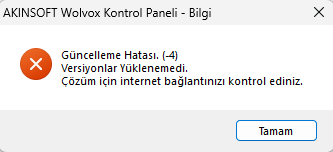
If you have an active update package, please update your Wolvox Control Panel to the latest version. If you do not have an active update package, please click here and follow the instructions provided in the article. If the error persists after completing these steps, you can contact your AKINSOFT Solution Partner or submit a technical support request through your Customer Panel.
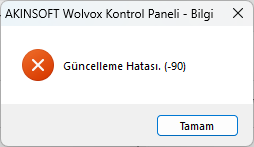
If you have an active update package, please update your Wolvox Control Panel to the latest version. If you do not have an active update package, please click here and follow the instructions provided in the article. If the error persists after completing these steps, you can contact your AKINSOFT Solution Partner or submit a technical support request through your Customer Panel.
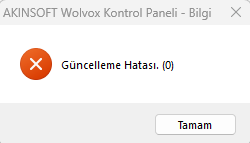
If you have an active update package, please update your Wolvox Control Panel to the latest version. If you do not have an active update package, please click here and follow the instructions provided in the article. If the error persists after completing these steps, you can contact your AKINSOFT Solution Partner or submit a technical support request through your Customer Panel.
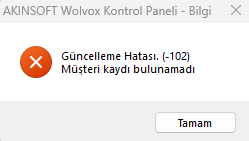
If you have an active update package, please update your Wolvox Control Panel to the latest version. If you do not have an active update package, please click here and follow the instructions provided in the article. If the error persists after completing these steps, you can contact your AKINSOFT Solution Partner or submit a technical support request through your Customer Panel.
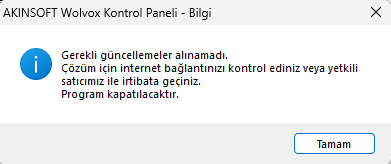
If you have an active update package, please update your Wolvox Control Panel to the latest version. If you do not have an active update package, please click here and follow the instructions provided in the article. If the error persists after completing these steps, you can contact your AKINSOFT Solution Partner or submit a technical support request through your Customer Panel.
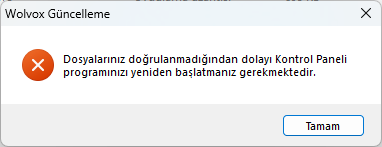
If you have an active update package, please update your Wolvox Control Panel to the latest version. If you do not have an active update package, please click here and follow the instructions provided in the article. If the error persists after completing these steps, you can contact your AKINSOFT Solution Partner or submit a technical support request through your Customer Panel.

