CODE: A4004
WOLVOX Program Download and Installation Instructions
1. BRIEF INFORMATION ABOUT THE WORKING SYSTEM
AKINSOFT Wolvox Installer program is used to automatically download Wolvox group programs from the Internet and easily install them on server or client computers.
It can also be used to check the latest published versions via the Internet and perform version updates.
www.akinsoft.com When any Wolvox program is downloaded from our website, a “Setup File” will be downloaded. In order to run the Wolvox Installer program, this downloaded file must be installed on the system once.
2. USAGE
After the program is installed and run, the “Installation Type” setting must be configured. For this process, click the “Server Setup” button located at the bottom of the program window.
In the window that opens, select the relevant button according to the type of computer on which the “Wolvox Installer” is installed. The Wolvox Installer program operates in 3 different modes:
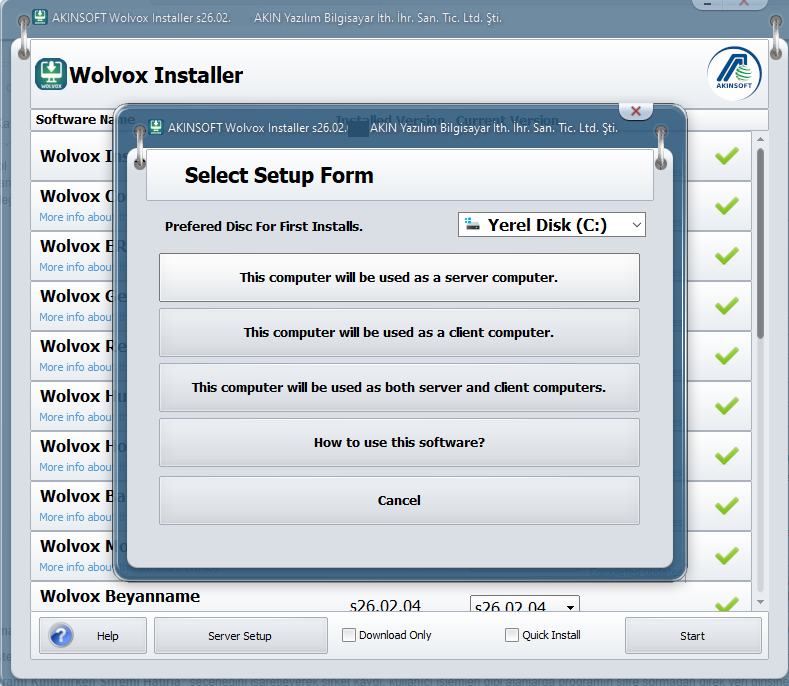
“Server” and “Server-Client” type installations include the installation of the “Wolvox Control Panel” program and other programs to be used.
“Client” (User/client) type installations should install only the programs that will run on the client.
Programs that will run on the client computer must be previously installed on the server computer.
Programs are installed and updated via the “Wolvox Control Panel” program on the server computer.
Therefore, in “Client” (User/client) type installations, the IP address and port number of the “Wolvox Control Panel” program running on the server computer must be specified. This port number can be seen as the “Update Port” in the “Wolvox Control Panel” window (Standard update port is 3056).
In “Client” (User/client) type installations, for programs that need to be updated, the “Wolvox Installer” will display a warning such as “You can update the program from the server computer”. In this case, the program in use (for example Wolvox ERP) must first be updated on the server computer.
When the program used on the client computer is opened, it will automatically update itself.
To start the installation or update process, click the “Start” button located at the bottom right.
If the Wolvox program is not installed on the system, the “Install” box next to it will be active.
If the Wolvox program is installed but its version is not up to date, the “Update” box next to it will be active. By clicking the “Updates Made” link just below, the changes made in the latest version can be viewed.
If the “Download Only” box at the bottom of the program window is checked, only the selected programs will be downloaded by selecting the “Download” boxes in the relevant program rows.
If the “Quick Installation” box at the bottom of the program window is checked, the installation of the downloaded program will run automatically without user confirmation, will be installed into the previously installed folder, and will be launched automatically.
3- SERVER INSTALLATION
To run the program on the server computer, install the Wolvox Control Panel program. Except for offline usage, the Control Panel is installed only on the main machine. If you are not using the program offline, install the Control Panel program only on the main machine. Then install the Wolvox programs you want to use. After completing the installations, run the Control Panel program.
When you run the Control Panel program, you will first be prompted to select a database. Select the Firebird database and click the "OK" button. The "Admin Login" screen will appear. The username field will display "SYSDBA", which is the Firebird database user. If you have not previously changed the Firebird database password or if this is the first installation, enter "masterkey" in the "Password" field. If you have previously used Firebird-based software and changed the password, enter the last password you set.
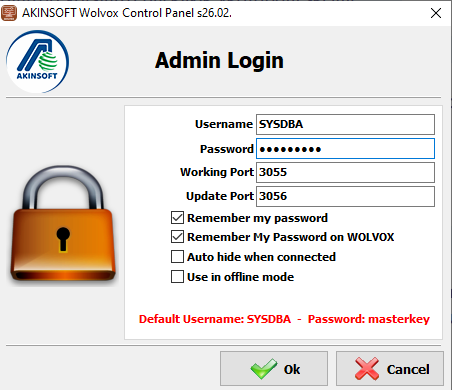
"Working Port" and "Update Port" fields should not be changed unless there is a special case. All Wolvox programs will connect to the Control Panel via the ports specified here.
"Remember My Password" option saves the username and password so the program opens automatically.
"Remember My Password on WOLVOX" option allows data entry without password prompts in areas such as company records and user operations.
"Auto Hide When Connected" option hides the Control Panel program once the connection is established.
"Use in Offline Mode" option should only be selected for client programs using the offline system.
3-1- Company Registration Procedures
After logging in, you will be asked whether you want to use a demo company. If you select "Yes", a company record with the code "DEMO_WOLVOX" will be created automatically, allowing you to test modules not included in your license.
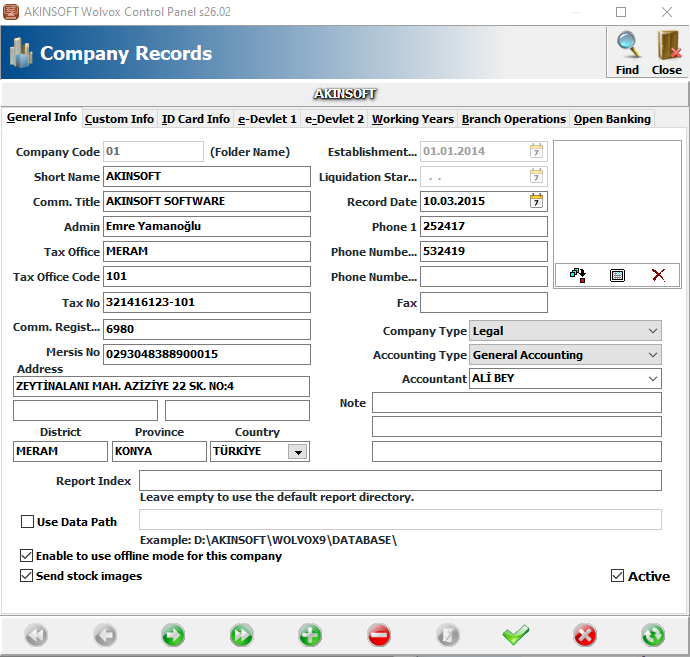
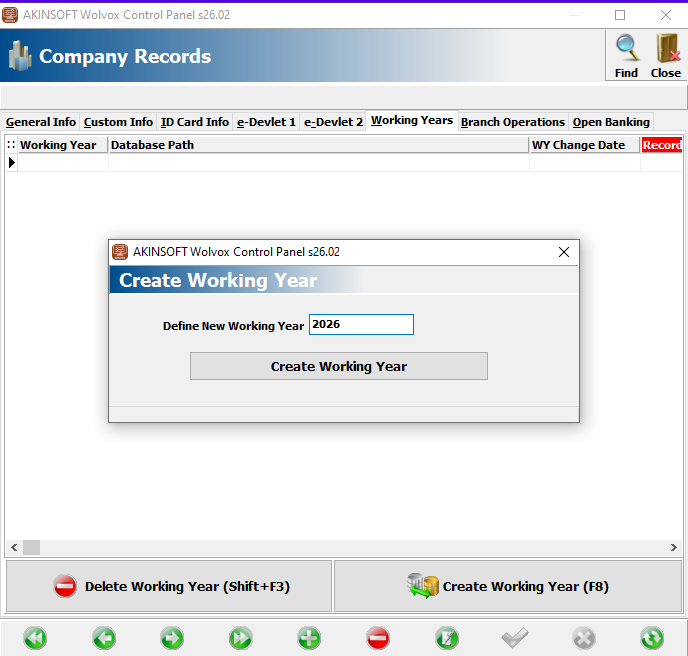
To register your companies, go to the "Company Record" section from the "Admin" menu. After entering the required information, click the "Save" button. Then go to the "Working Years" tab and click "Create Working Year (F8)". Enter the working year and click "Create Working Year".
3-2- Branch Procedures
If you are using the program with branch system support, you must create branch records after creating the company record. Go to the "Branch Procedures" tab and create a branch using the "Branch Registration" button.
3-3- User Registration and Authorization Procedures
To define users, select "User Authorization" from the main menu. After entering user information, click "User Authorization (F6)" to assign permissions.
You can assign permissions based on company, working year, or module. Use the "Company", "Working Year Authorizations", "Program Usage Permissions", "Terminal Permissions", "Authorized Personnel", "CRM Activity", and "Additional Permissions" sections to configure access.
After these procedures, you can run WOLVOX ERP, General Accounting, Business Ledger, and Human Resources programs.
4- CLIENT (USER) INSTALLATION
Before client installation, make sure the client computer can see the server computer on the network. Except for offline usage, the Wolvox Control Panel should be installed only on the server computer.
4-1- Client (User) Connection
Install and run the Wolvox program. On the "User Login" screen, go to "Server Settings" and enter the server IP address or computer name in the "Host Computer IP" field, and the Control Panel working port in the "Connection Port Host Computer" field.
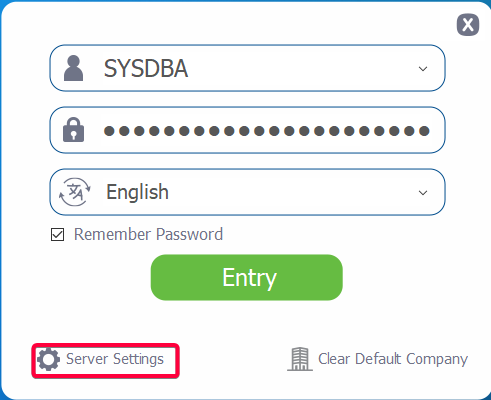
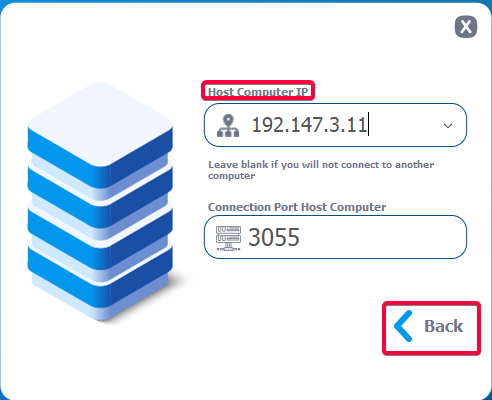
Click "Back", return to the "User Login" screen, enter your username and password, and click "OK".
Note -1: To connect with full authorization from the client computer, use the SYSDBA username and Firebird administrator password.
IMPORTANT NOTE :
A "Uninterruptible Power Supply (UPS)" must be used on the server computer. Power outages or voltage fluctuations may cause database corruption and data loss.
The Control Panel program includes an automatic backup module. Be sure to configure backup settings in the "Backup Settings" section.
Note: Default authorized username is "SYSDBA" and password is "masterkey". This is the Firebird administrator password.
Note: Passwords are case-sensitive.
Note: When upgrading from Wolvox 9 to Wolvox 26, desktop shortcuts will be deleted. During installation, the option to create desktop shortcuts must be selected.

