CODE: A4079
How to Use Your Own Domain Name with AKINSOFT Myrezzta, QR Menu, and ProKuaför
1. Go to https://www.cloudflare.com/.
2. Click the "Start for free" button and create a Cloudflare account.
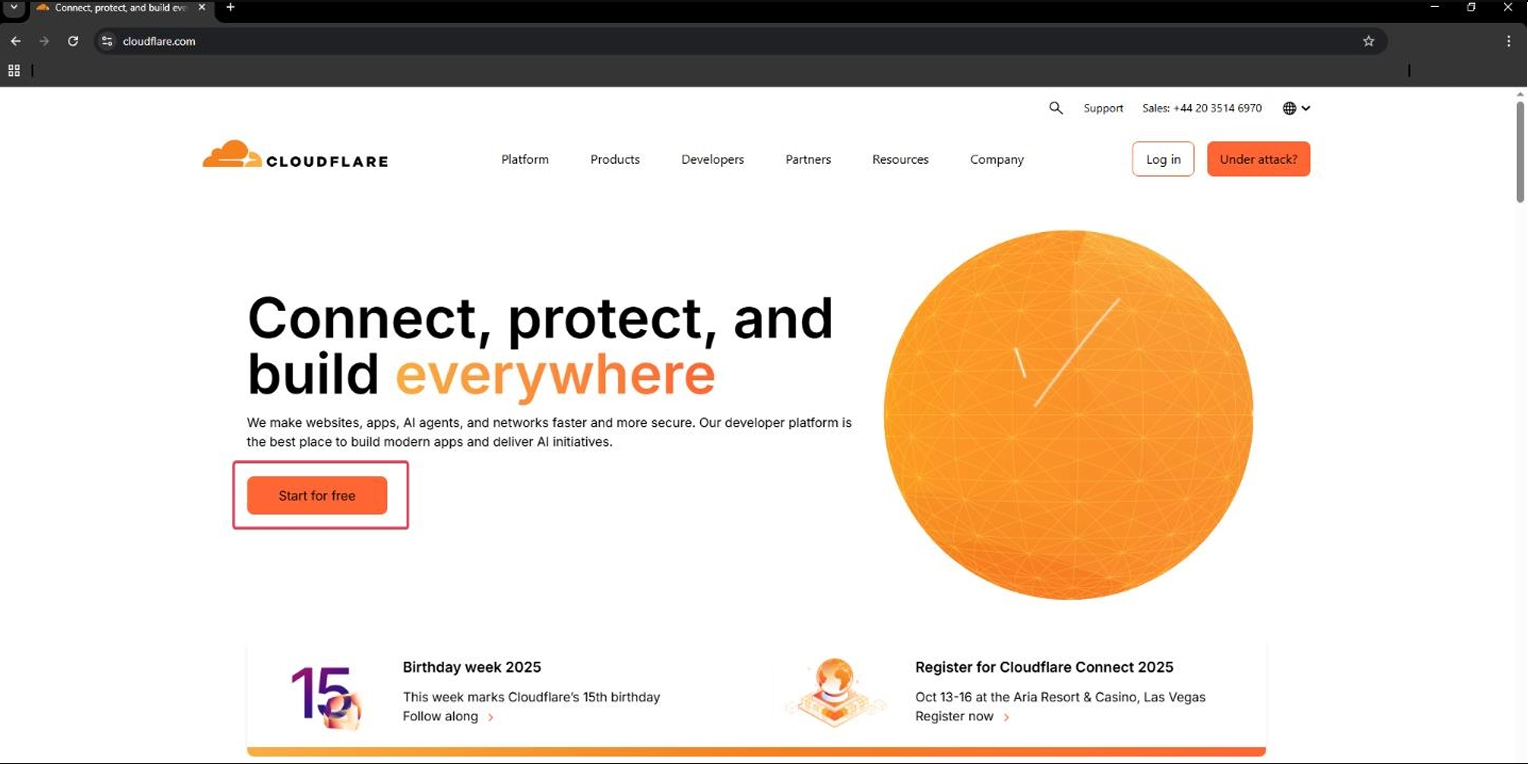

3. On the next screen, enter your domain name in the "Enter an existing domain" field and click "Continue".

4. Cloudflare will ask you to choose a plan. You can continue for free by selecting the "Free" plan and clicking "Select plan".

5. From the left-hand menu, click "Overview".

6. The page will display the configuration steps you need to complete:
6.1. Log in to your domain management panel.
6.2. Make sure DNSSEC is disabled. After completing the configuration, you may enable it again through Cloudflare if desired.
6.3. Replace your current Nameserver (NS) records with the two nameservers provided by Cloudflare.

6.4. Save the changes in your domain management panel.
6.5. After completing all the changes, click "Check nameservers now" at the bottom of the Cloudflare page to verify the configuration. If everything has been configured correctly, Cloudflare will confirm the changes.

7. After completing the previous steps, navigate to DNS >> Records and click Add record.
7.1. Create an A record by entering your domain name in the Name field, 213.128.64.194 in the IPv4 Address field, and setting Proxy Status to Disabled. Then click Save.

7.2. Next, create a CNAME record. Enter www in the Name field, your domain name in the Target field, set Proxy Status to Disabled, and click Save.

Important: If there are any existing NS, A, or other DNS records that may conflict with these settings, it is recommended to remove them before creating the new records.
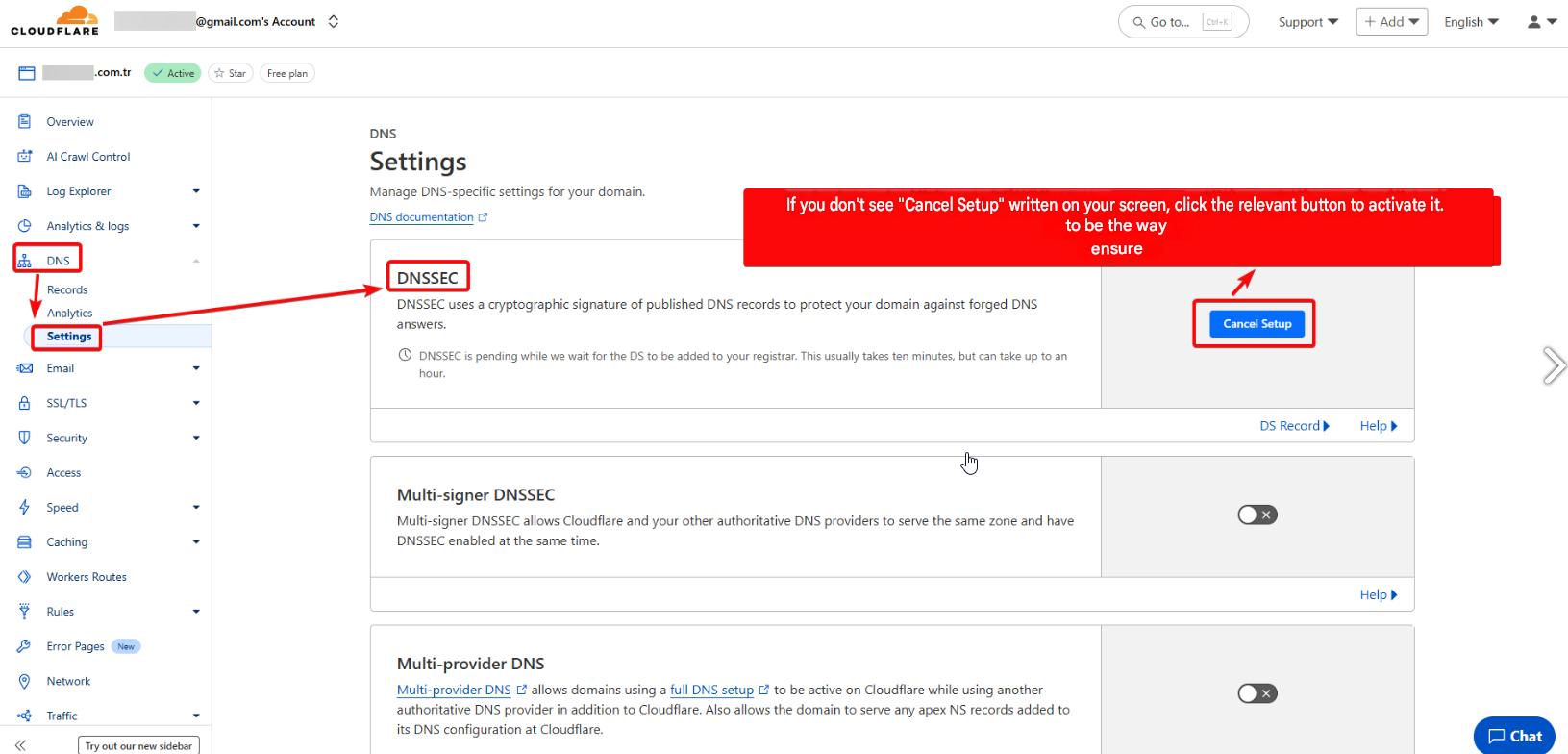
8. After completing the DNS configuration, go to DNS >> Settings and enable DNSSEC if it is currently disabled.
9. Navigate to SSL/TLS >> Edge Certificates.
9.1. If Always Use HTTPS is disabled, enable it as shown in the image below.

After completing all of the above steps, please inform your regional representative so that the installation process can be initiated.

